
How to Design Drones and Ambient Textures
A step-by-step guide to designing drones and ambient textures with any synth, from waveform and filter to unison, slow movement, and reverb.
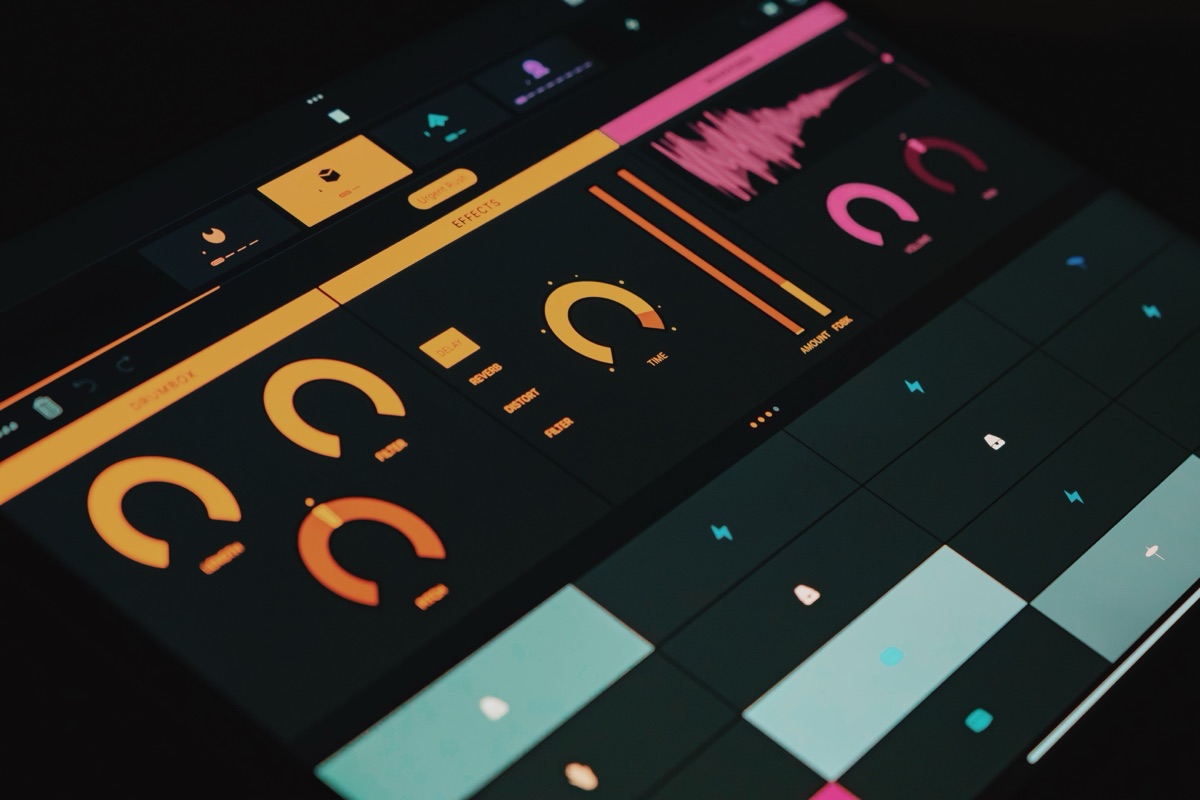
A good drone sounds simple, but holding a note for two minutes quickly shows whether a sound has enough movement and depth. This guide walks through designing drones and ambient textures one step at a time, from choosing a waveform to placing the sound in a mix. We use Diffusia, our free drone synth VST, for the examples, but every step works on any synth with a filter, an envelope, and some effects.
All the settings below are starting points. How they sound depends on the waveform, the notes you hold, and what else is in your track.
Step 1: Choose a Waveform
The waveform is the raw tone the synth starts from. It decides how much harmonic content (overtones above the main pitch) you have to work with.
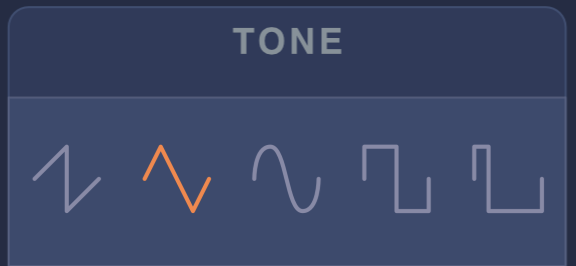
Diffusia’s Tone section has five waveforms:
- Saw: bright and buzzy, full of overtones. Gives the filter the most to work with.
- Triangle: soft, with a few gentle overtones. A good all-round starting point.
- Sine: pure and smooth, almost no overtones. Good for deep sub drones that sit under everything.
- Square: hollow and woody. Works well for darker, reedy drones.
- Narrow pulse: a thinner version of the square, with a more nasal, buzzy tone.
For your first drone, start with a triangle. It’s soft enough to sit under other parts, with enough overtones for the filter in the next step to shape.
Step 2: Shape the Tone With the Filter
A low-pass filter cuts frequencies above the cutoff point, which makes a sound darker and softer. Resonance boosts the frequencies right at the cutoff, adding a focused, slightly whistling peak.
In Diffusia’s Tone section, the large Filter knob sets the cutoff (from 50 Hz to 8 kHz), and the small Res knob sets the resonance. The selector next to them switches between low-pass (LP), band-pass (BP), and high-pass (HP). Leave it on LP for this guide.
- Start with the cutoff around
800-1500 Hzand raise it until the drone has a little brightness without sounding harsh. - Keep resonance low at first, around
1-2. Small amounts add character; high amounts can make the drone ring at one frequency. - Darker drones tend to sit behind other parts more easily. Brighter drones draw attention.
Step 3: Set a Slow Envelope
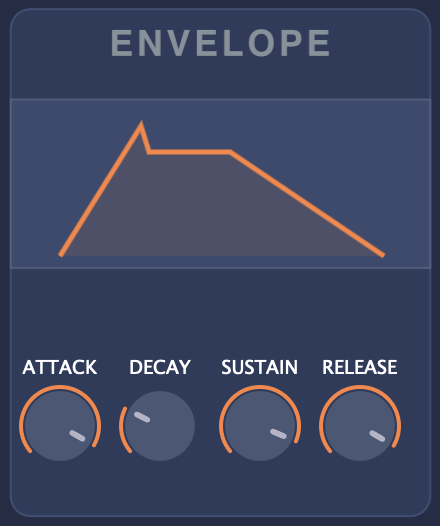
The amp envelope controls how volume changes over time after you press and release a key. For drones, slow is the goal.
- Attack: how long the sound takes to fade in. Try
2-4 sso notes swell in rather than starting with a click. - Decay: how long the sound takes to fall from its peak to the sustain level. With sustain near full, decay has little effect, so it can stay short.
- Sustain: the level held while the key is down. Keep it at or near full.
- Release: how long the sound fades after you let go. Try
4-8 sso chord changes overlap and blur together.
Long releases are what make chord changes feel smooth in ambient music. If changes sound muddy, shorten the release a little.
Step 4: Add Width With Unison
Unison plays several copies of each voice at once, each slightly out of tune with the others. The small pitch differences create a slow, shimmering beat and make the sound wider.
Diffusia handles this with a single Unison knob in the Tone section. Each note uses five slightly detuned oscillators, with fresh random detune amounts every time you play it, and the knob sets how far apart they spread.
- Start with a small amount, around
0.3-0.8. Too much detune sounds out of tune rather than wide. - Hold a chord rather than a single note. Diffusia has six voices, so a three or four note chord leaves room for overlapping releases.
- Check the drone in mono occasionally. Wide unison can lose some body when summed to mono.
Step 5: Create Slow Movement
A static drone gets tiring fast. A small amount of constant movement keeps it alive.
- Tremolo moves the volume up and down. In Diffusia it’s the Drift section in the effects panel. A slow rate, well under one cycle per second, with low depth adds a gentle breathing pulse. Faster rates start to sound rhythmic.
- Chorus adds slightly delayed, pitch-wobbled copies of the sound. A light amount adds depth and a slow swirl.
- Manual movement: automate the filter cutoff slowly over 16 or 32 bars in your DAW. This is often the most effective change you can make.
Use each one lightly. When several sources of movement are all at high settings, the drone starts to sound seasick rather than alive.
Step 6: Place It in Space With Reverb
Reverb simulates the sound of a room or hall. On drones it does two jobs: it adds space, and it smooths over any remaining edges in the tone.
- Use a large space and a long decay. Drones can handle much longer reverb tails than drums or vocals.
- Raise the mix until the drone feels like it’s coming from somewhere behind the speakers, then back it off slightly.
- If the low end gets cloudy, cut some low frequencies from the reverb if your plugin allows it, or use a separate reverb on a send with a high-pass filter.
Step 7: Layer and Process Further
One drone layer is often enough. When you want more texture, try:
- A sub layer: a sine drone an octave below, kept quiet, for weight.
- A granular layer: send the drone through a granular effect to turn it into a cloud of tiny fragments. Our guide to granular synthesis for ambient pads has starting settings.
- A field recording: rain, room tone, or wind underneath a synth drone adds an organic texture that’s hard to synthesize.
Step 8: Fit the Drone Into a Mix
Drones fill a lot of space, so they need to make room for everything else.
- Keep the level lower than feels natural. A drone usually works best when you notice it only when it stops.
- Use EQ to cut the drone where vocals or lead parts sit.
- Cut low frequencies below the drone’s fundamental (its lowest pitch) so it doesn’t fight the kick or bass.
Recap
- Pick a waveform with the right amount of harmonics.
- Darken it with a low-pass filter.
- Use a slow attack and long release.
- Add width with a little unison detune.
- Add gentle movement with tremolo, chorus, or slow filter automation.
- Place it in a large reverb.
- Layer only when it adds something.
- Keep it low and EQ’d in the mix.
If you’re still deciding which synth to use, our roundup of the best drone synth VSTs compares free and paid options. To follow along with this guide, download Diffusia free.